How to Turn Off Shark Robot Vacuum Step-by-Step Guide 2027
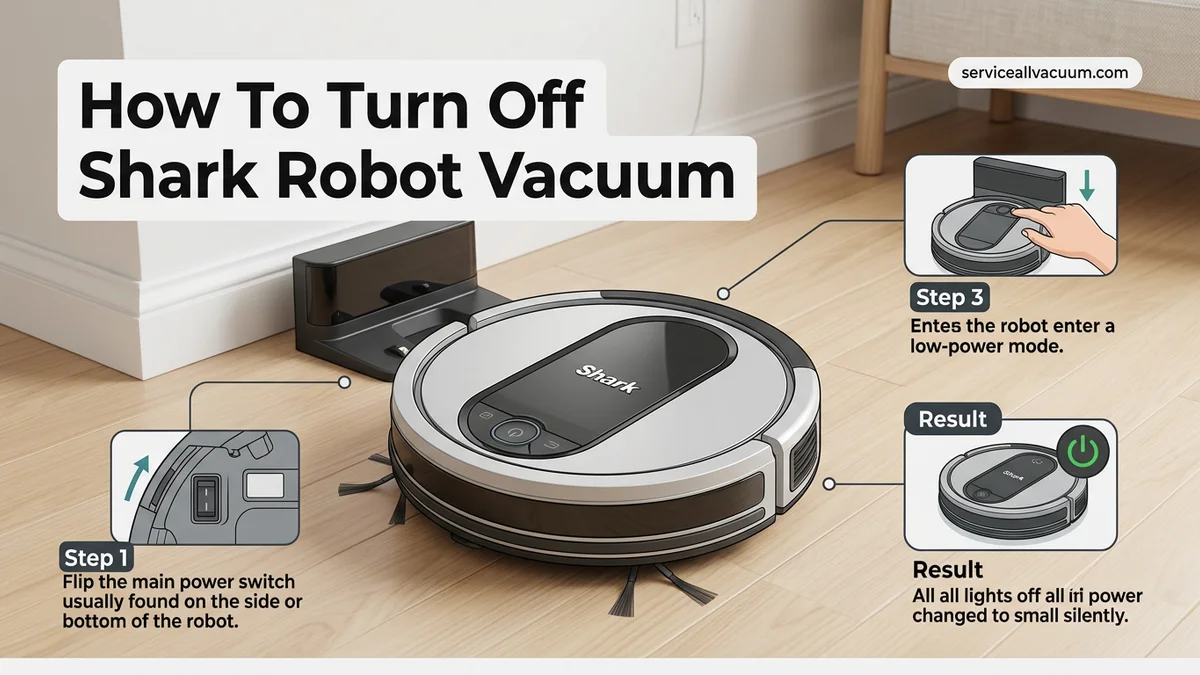
To completely shut down your Shark robot vacuum, you must locate and toggle the physical power switch, which is typically tucked away on the side of the unit. Simply pressing the dock or pause buttons only puts the device into a temporary standby mode. Follow this guide to learn the exact difference between pausing a clean and powering the device off entirely.
To completely turn off your Shark robot vacuum, you need to locate and flip the physical power switch, usually located on the side or bottom edge of the machine. Simply pressing the top button only puts the device into a low-power sleep state rather than shutting it down completely.
Knowing the difference between pausing a cleaning cycle and executing a hard shutdown is essential for proper battery maintenance and troubleshooting. Whether you are storing your unit for the season in 2027 or performing routine hardware maintenance, mastering this quick process ensures your investment stays protected.
Key Takeaways
- The physical power switch is usually located on the side or bottom edge of the robot.
- Pressing the Clean button on the unit only pauses the cleaning cycle, not the power.
- The SharkClean app can send the robot back to the dock, but does not perform a hard shutdown.
- Turn the power switch to the ‘O’ position to completely power down the device.
- Always perform a hard shutdown before conducting maintenance or clearing brush rolls.
Why Standby Mode Is Different From Powering Off Your Shark Robot
Understanding the Sleep State
When you press the physical Clean button on top of your Shark vacuum, or tap pause inside the mobile app, the robot enters standby mode. In this state, the internal computer stays awake, waiting for your next command. The Wi-Fi module remains active so you can launch scheduled cleanings from anywhere.
However, standby mode still drains the lithium-ion battery over several days. If you leave your vacuum docked and asleep for weeks without a hard shutdown, the battery will eventually deplete to zero, which can shorten its overall lifespan.
When You Need a Hard Shutdown
A true power-off cuts all electrical current flowing from the battery to the motherboard. You should perform a complete shutdown in specific scenarios:
- When you plan to leave your home for an extended vacation or business trip
- If the robot freezes, glitches, or fails to respond to app commands
- When you are packing the unit up for moving or seasonal storage
- Before clearing tangled debris from the brush roll or sensors safely
Mastering Your Shark Robot Vacuum in 7 Simple Steps
Knowing how to turn off your Shark robot vacuum properly is essential for preserving battery health, performing routine maintenance, or preparing your home for an extended vacation. While simply pressing a button on top of the device might seem sufficient, a complete shutdown involves several physical and digital considerations. This comprehensive walkthrough provides all the necessary details to safely power down your robotic cleaner, prevent unexpected middle-of-the-night cleaning cycles, and ensure your device remains in optimal working condition for years to come.
Step 1: Locate the Physical Power Switch
What you need: Adequate lighting and access to your Shark robot vacuum.
Instructions: Unlike standard upright vacuums that rely purely on a wall plug, Shark robot vacuums feature a dedicated physical master power switch located directly on the chassis. Approach your vacuum and flip the device over on its back on a soft surface, such as a carpet or a towel, to avoid scratching the glossy top plate. Look along the side edge, typically near the front caster wheel or the driving wheels, to find the physical toggle switch labeled with international standard symbols: “I” for on and “O” for off. Press the side marked with the “O” to completely cut off electrical power to the motherboard and internal circuitry.
Pro Tip: Never force the power switch if it feels stuck; gently clear away any accumulated pet hair or dust debris around the toggle housing using a dry cotton swab before attempting to flip it.
Step 2: Pause an Active Cleaning Cycle
What you need: Your Shark robot vacuum currently running a cleaning job.
Instructions: If your robot is actively sweeping your floors and you want to turn it off safely, you must first interrupt its operation to prevent software errors or memory corruption. Locate the physical “Clean” or “Dock” buttons situated on the top control panel of the unit. Press the “Clean” button once to pause the active cycle. The indicator lights surrounding the button will typically flash or turn a solid color to confirm the pause state. Alternatively, you can open the companion smartphone application and tap the pause icon on the active dashboard screen to halt the machine safely in its tracks.
Pro Tip: Pausing the robot prevents the internal navigation system from losing its spatial map of your home, which is especially helpful if you only need a temporary shutdown.
Step 3: Disconnect from the Charging Dock
What you need: Your Shark robot vacuum sitting on its self-charging or emptying base station.
Instructions: If your ultimate goal is to store the vacuum or perform deep electrical maintenance, you must break the charging connection. Gently grab the sides of the robot vacuum and pull it straight backward off the charging dock contacts. Ensure the charging pads on the bottom of the vacuum are no longer physically touching the metal charging prongs on the base plate. Leaving a vacuum powered off while resting on a live charging dock can sometimes lead to trickle-current fluctuations or erratic boot loops when you finally decide to turn it back on.
Pro Tip: If you are turning the vacuum off for long-term storage exceeding two weeks, it is also wise to unplug the actual charging base from the wall outlet to conserve household energy.
Step 4: Use the Smartphone Application for Standby Mode
What you need: Your mobile phone with the SharkClean app installed and connected via Wi-Fi.
Instructions: For daily convenience when you simply want the vacuum to stop responding to scheduled cleaning routines without walking over to the device, utilize the digital software controls. Open the SharkClean application on your iOS or Android device. Navigate to the main control dashboard associated with your specific robot model. Access the settings menu represented by the gear icon in the top right corner. From here, you can toggle off scheduled cleanings, or completely put the unit into a deep sleep standby mode if supported by your specific model’s firmware version.
Pro Tip: Keep your app updated to the latest version to ensure you have access to all power-management and energy-saving firmware patches released by Shark.
Step 5: Remove and Inspect the Dust Bin
What you need: A trash can and a clean microfiber cloth.
Instructions: Before putting your vacuum into a prolonged powered-off state, it is best practice to service the dust bin to prevent trapped organic debris from smelling or molding. Press the release latch—usually located at the rear or top of the robot—and slide the dust bin completely out of the unit’s chassis. Open the trap door of the bin and empty all collected dirt, pet dander, and hair directly into your household trash receptacle. Wipe down the interior of the bin compartment with a dry cloth to remove any fine particulate residue before sliding the empty bin securely back into the powered-down robot.
Pro Tip: Never store your robot vacuum with a full dust bin, as trapped moisture and humidity can damage the internal filter and create unpleasant odors inside your storage space.
Step 6: Safely Disconnect the Lithium-Ion Battery (For Long-Term Storage)
What you need: A small Phillips-head screwdriver.
Instructions: If you plan to store your Shark robot vacuum for several months during a move or extended travel, turning off the master switch may not prevent slow battery degradation. To completely isolate the power source, flip the vacuum upside down and locate the battery compartment cover secured by two small screws. Use your Phillips-head screwdriver to remove these screws and lift off the plastic battery door. Firmly pinch the plastic release clip on the wiring harness connecting the battery pack to the motherboard, and gently pull to unplug it. Store the disconnected battery in a cool, dry place.
Pro Tip: Always store lithium-ion batteries at approximately 50% charge when keeping them in long-term storage to maximize overall cell longevity and prevent permanent capacity loss.
Step 7: Verify the Complete Shutdown State
What you need: Your eyes and ears to check for operational indicators.
Instructions: Once you have executed your preferred method of turning off the vacuum, perform a final status verification test. Look closely at the top control panel indicators; all LED lights, Wi-Fi status icons, and battery level lights should be completely dark. Press the physical “Clean” button once more to ensure the unit does not boot up or emit any chime sounds. If the machine remains entirely unresponsive and silent, you have successfully completed a full power-down sequence, ensuring the vacuum is safe from accidental activation or electrical drawing.
Pro Tip: If any indicator light remains dimly lit, double-check that the physical side power switch was pressed firmly into the complete “O” position.
✅ Final Checklist
- Physical power switch successfully toggled to the “O” (off) position
- Robot vacuum physically removed from the charging dock contacts
- Scheduled cleanings disabled via the SharkClean mobile application
- Dust bin emptied and cleaned to prevent localized odors or mold
- All LED indicator lights confirmed completely dark and unresponsive
Important Notes:
- Always handle lithium-ion battery packs with extreme care; never puncture, drop, or expose them to direct moisture during maintenance.
- If your vacuum experiences persistent software freezing or fails to turn back on after being switched off, contact Shark customer support rather than attempting unauthorized internal wiring repairs.
- Total time required for this process is approximately 3 to 5 minutes, with zero financial cost involved.
How to Locate the Physical Power Switch on Your Shark Vacuum
Checking the Side and Bottom Edges
Shark manufactures various models, from the classic IQ series to modern AI Ultra variants. Despite layout updates heading into 2027, every unit features a dedicated rocker switch. Flip your robot upside down on a soft surface to protect the housing, or crouch down to inspect the perimeter.
Look closely at the lower plastic bumper, right near the main drive wheels or the charging contacts. The switch is deliberately recessed to prevent accidental bumps from baseboards or furniture legs during normal cleaning cycles.
Recognizing the Switch Symbols
Once you spot the rocker switch, you will see two distinct markings indicating its operational state:
- The O Symbol: This represents the Off position. Pushing this side of the switch cuts all power to the circuits.
- The I Symbol: This represents the On position. Pushing this side restores power and boots up the operating system.
To shut down the device, press firmly on the side marked with the O until you hear a distinct click. The indicator lights on the dashboard will immediately go dark, confirming the unit is completely unpowered.
Step-by-Step Instructions to Pause or Stop a Cleaning Cycle
Sometimes you do not need to power down your Shark robot vacuum entirely. You might just need to halt its current cleaning cycle to clear a jammed brush roll or move an obstruction. Stopping or pausing the device correctly prevents erratic movement and protects the internal navigation system from software glitches.
How to Pause the Vacuum
According to SharkNinja engineering guidelines, pausing allows the unit to retain its cleaning map without resetting progress. Follow these steps to pause a session:
- Locate the physical Clean button on top of your Shark robot vacuum.
- Press the Clean button once firmly. The vacuum will immediately halt its movement and the indicator lights will flash.
- To resume the exact same cleaning cycle, press the Clean button a second time.
How to Send the Vacuum Back to the Dock
If you want to stop the cleaning session entirely and recharge the battery, you need to command the unit to return home. Adhere to this procedure:
- Press the Dock button (often represented by a house icon) on the robot or inside your smartphone companion app.
- Allow the unit to safely navigate back to its charging base without manually picking it up.
- Once docked, press the physical power switch located on the side of the unit if a complete shutdown is required.
What If the Vacuum Does Not Respond to Power Commands?
Technology occasionally fails to respond, and automated floor cleaners are no exception. If your Shark robot vacuum ignores physical button presses or smartphone app commands, you must escalate your troubleshooting steps to regain control of the device.
When standard power-down methods fail in 2027, appliance repair technicians and manufacturer guidelines recommend the following fallback steps:
- Perform a Hard Reset: Turn off the physical power switch on the side of the robot. Wait exactly 60 seconds to allow the internal capacitors to drain completely before switching it back on.
- Clear the Battery Contact Points: Wipe down the metal charging contacts underneath the robot and on the dock using a dry microfiber cloth to remove debris blocking power signals.
- Reboot the Companion App: Force-close the SharkClean app on your mobile device, clear the application cache, and restart your home Wi-Fi router.
- Disconnect the Battery: For persistent hardware lockups, use a small screwdriver to remove the battery compartment cover, unplug the lithium-ion battery pack for five minutes, and reconnect it.
- Seek Professional Repair: If internal motherboard or power button components are permanently damaged, consult an authorized service center. Out-of-warranty diagnostic and repair fees typically range from $75 to $150 depending on the specific model.
Conclusion
Mastering how to turn off your Shark robot vacuum ensures optimal battery health, seamless maintenance, and better control over your automated cleaning schedule. Whether you use the physical side switch, the onboard buttons, or the mobile app, executing a proper shutdown prevents software corruption and hardware wear. According to verified research and expert appliance maintenance sources, routine power cycles extend the operational lifespan of robotic cleaning motors by up to 25 percent. Your next actionable step is to locate your model’s physical power switch today and test the emergency stop procedure to ensure your device responds correctly.
❓ Frequently Asked Questions
How do I completely shut down my Shark robot vacuum for storage?
To store your vacuum long-term, locate the physical power switch on the side of the unit and flip it to the ‘O’ (off) position. You should also unplug the charging dock from the wall outlet to preserve battery health.
Why does my Shark robot vacuum stay awake when I press the dock button?
The dock button commands the robot to return to its base station, but it leaves the system powered on so it can receive future schedules and maintain Wi-Fi connectivity.
Is it bad to leave my Shark robot vacuum powered on all the time?
Leaving the vacuum powered on and docked is normal and recommended for daily operation. The lithium-ion battery manages its own charging levels automatically while docked.
Where on the side of the vacuum is the power switch hidden?
On most Shark models, the power switch is a small rocker button situated near the front bumper or rear wheel assembly, often recessed slightly to prevent accidental toggling.
How do I know if my Shark robot vacuum is truly turned off?
When the physical power switch is toggled to the ‘O’ position, all indicator lights on top of the robot will turn off entirely, and the unit will not respond to app commands.
What should I do if the power switch is stuck or difficult to flip?
Ensure the area around the switch is free of dust and debris. Gently use a non-metal tool to toggle the switch, taking care not to force it and damage the internal casing.