Why Does My Shark Vacuum Say Disconnected? Expert Fix 2027
A ‘disconnected’ message on your Shark vacuum typically indicates a loss of communication with your Wi-Fi network or the SharkClean app. This common issue can often be resolved through simple troubleshooting steps like checking Wi-Fi, power cycling, or app re-pairing to restore your smart vacuum’s functionality.
Your Shark vacuum displaying a “disconnected” message typically indicates a break in its communication with your home Wi-Fi network or the SharkClean mobile app. This isn’t usually a sign of a major hardware failure, but rather a common connectivity hiccup that can stem from various sources, from a simple Wi-Fi blip to a temporary app desynchronization. Resolving this quickly means your smart vacuum can get back to its schedule, ensuring your floors stay clean without manual intervention.
Understanding the immediate cause of this disconnection is key to efficiently troubleshooting and restoring full functionality. By addressing these common issues directly, you can avoid frustrating delays and ensure your vacuum’s smart features remain accessible via the SharkClean app, keeping your automated cleaning routine on track for 2027 and beyond.
Key Takeaways
- Check your Wi-Fi router and vacuum’s power first.
- Perform a power cycle on both vacuum and router.
- Ensure SharkClean app is updated or reinstalled.
- Verify your home Wi-Fi is 2.4GHz for compatibility.
- Contact Shark support if issues persist after steps.
What Causes Your Shark Vacuum to Say ‘Disconnected’?
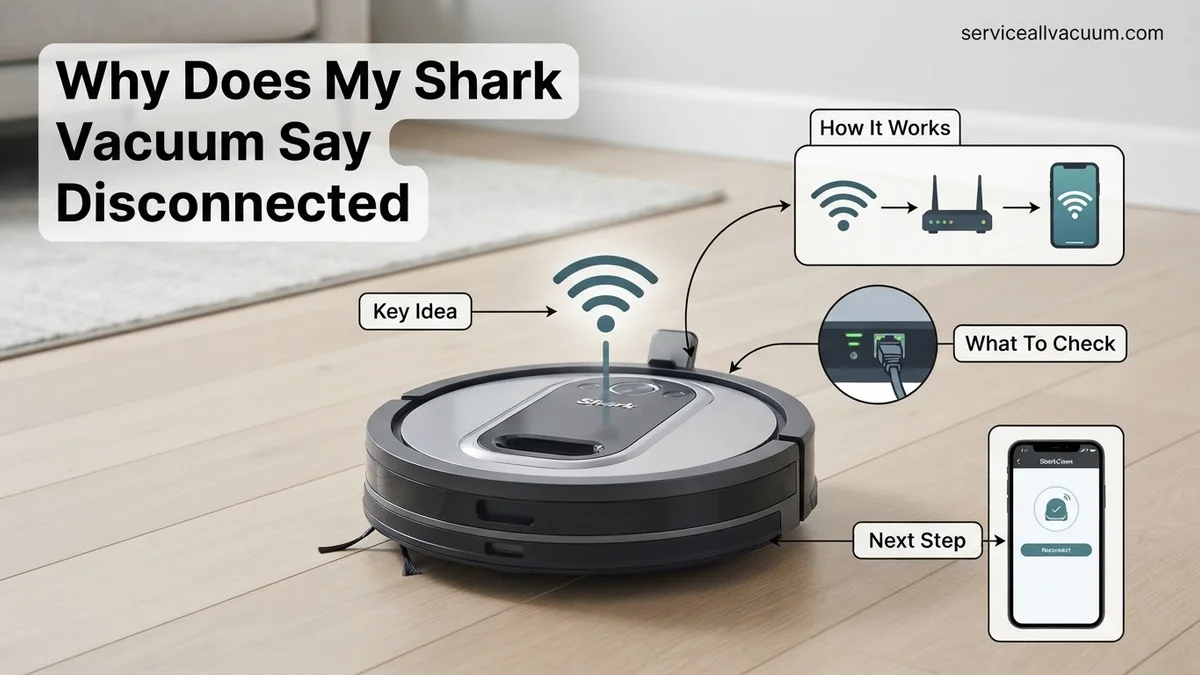
When your Shark robot vacuum reports being “disconnected,” it’s experiencing a communication breakdown, preventing it from receiving commands or sending status updates via the SharkClean app. This can be incredibly frustrating, especially when you rely on its automated cleaning schedules and smart features. Identifying the root cause is the critical first step to getting it back online and responding to your commands, ensuring your home remains tidy in 2027.
Common Connectivity Culprits Behind Disconnection
Most disconnection errors trace back to one of a few primary issues, ranging from simple network hiccups to configuration changes. It’s rarely a vacuum-specific hardware fault but rather an interruption in its digital lifeline to your home network or Shark’s cloud services.
- Unstable or Lost Wi-Fi Network Connection: This is the single most frequent cause. Your home Wi-Fi signal might have momentarily dropped, the router could have rebooted unexpectedly, or the vacuum may be too far from the router. Shark vacuums, even current 2027 models, predominantly rely on the 2.4GHz Wi-Fi band, which offers greater range but can be susceptible to interference from other devices (microwaves, cordless phones) or congested channels. Changes to your router’s SSID (network name), password, or even switching to a new Internet Service Provider without reconfiguring the vacuum will lead to disconnection.
- SharkClean App or Server Desynchronization: Sometimes, the issue isn’t with the vacuum’s Wi-Fi, but with the mobile app itself or Shark’s cloud servers. The app might display an outdated status due to a cached error, or there could be a temporary server outage preventing your app from communicating with your vacuum via the cloud. This means the vacuum is online, but the app thinks it isn’t.
- Vacuum’s Internal Software Glitch (Requires Power Cycle): Like any complex electronic device, your Shark vacuum’s internal operating system can experience minor software glitches. These temporary bugs can lead to a dropped Wi-Fi connection, unresponsiveness, or an incorrect status display. A simple power cycle often acts as a soft reset, clearing these transient errors and allowing the vacuum to re-initialize its network components.
- Physical Component Disconnection (for Modular Units): Specific Shark robot models, particularly those in the IQ series, feature modular designs where components like the dust bin or brushroll housing might contain sensors crucial for overall system operation. If these parts are not securely latched or are incorrectly seated, it can interrupt the vacuum’s internal communication protocols, leading to a system-wide error that manifests as a “disconnected” status, even if the Wi-Fi is technically fine.
- Router Configuration Changes or Advanced Settings: Updates to your router’s firmware, newly activated security features (like MAC address filtering, guest networks, or advanced firewall settings), or a transition to a mesh Wi-Fi system can inadvertently block or prevent your Shark vacuum from connecting. Ensure your router isn’t isolating devices or restricting unknown MAC addresses.
Step-by-Step Fix: Reconnecting Your Shark Vacuum
Getting your Shark vacuum back online typically involves a structured approach to troubleshooting. Start with the easiest and most common solutions, then progressively move to more comprehensive resets if the initial steps don’t resolve the “disconnected” message. This systematic process helps you pinpoint and rectify the exact issue efficiently.
Immediate Troubleshooting & Re-pairing Procedures
Before considering a factory reset, which involves re-setup from scratch, try these immediate and less invasive fixes. They resolve the vast majority of “disconnected” issues quickly and with minimal effort.
- Execute a Vacuum Power Cycle: Locate the main power switch on your Shark robot vacuum (its position varies by model, often on the side or underneath). Switch it to the “OFF” position, wait a full 10-15 seconds to allow internal components to fully discharge, then switch it back “ON.” This forces the vacuum’s internal system to reboot and attempt re-establishing its Wi-Fi connection from scratch. Observe the vacuum’s indicator lights for connection status.
- Perform a Router Restart: Unplug your home Wi-Fi router from its power outlet. Wait at least 30 seconds to ensure it completely powers down and clears any temporary network caches. Then, plug it back in. Allow 2-3 minutes for your entire home network to fully restart and stabilize before checking the vacuum’s connection. This refreshes IP addresses and can clear network congestion.
- Force Close and Reopen the SharkClean App: On your smartphone (iOS or Android), completely close the SharkClean app. This means swiping it away from your list of recent or open applications, not just minimizing it. Then, reopen the app. This ensures the app isn’t displaying a cached or outdated status and attempts a fresh connection to Shark’s cloud servers.
- Assess Wi-Fi Signal Strength and Placement: Stand with your smartphone right next to your Shark vacuum. Check your phone’s Wi-Fi signal strength; if it’s weak, your vacuum is also likely struggling. Consider moving your vacuum closer to your Wi-Fi router, or invest in a 2.4GHz-compatible Wi-Fi extender if the distance is significant. Concrete walls or large appliances can block signals.
- Inspect and Reseat Physical Components: For Shark models like the IQ Robot series, ensuring all physical components are correctly installed is crucial. Remove the dust bin, brushroll cover, and any other detachable parts. Clean any visible debris, then firmly re-insert each component until you hear a distinct click. An improperly seated bin, for example, can disrupt internal sensors and communication pathways.
- Verify 2.4GHz Wi-Fi Band Usage: Confirm that your home Wi-Fi network is broadcasting a 2.4GHz band. Many modern routers offer both 2.4GHz and 5GHz. Shark vacuums typically only connect to the 2.4GHz band. If your router uses a combined SSID for both, or if you’ve inadvertently disabled the 2.4GHz band, your vacuum won’t be able to connect. Check your router’s settings or contact your ISP for assistance.
Advanced Troubleshooting & Wi-Fi Optimization Tips
If basic connectivity checks haven’t resolved the “disconnected” message, a deeper dive into your home network configuration and the vacuum’s advanced settings is necessary. Modern smart appliances, including Shark vacuums, rely on stable network conditions, often specifically preferring the 2.4 GHz band for its wider range, even in 2027.
Optimize Your Wi-Fi Environment
- Check Router Firmware: Ensure your Wi-Fi router is running the latest firmware. Major manufacturers like Netgear and Asus release critical updates quarterly. Outdated firmware can cause intermittent connectivity or prevent device recognition.
- Analyze Wi-Fi Channel Congestion: Use a Wi-Fi analyzer app (available for most smartphones) to identify the least congested 2.4 GHz channel in your area. Switching your router to a less crowded channel can significantly improve device communication stability.
- Disable Wi-Fi 6E/7 Band Steering for Legacy Devices: While most 2027 routers support Wi-Fi 6E and Wi-Fi 7, some older Shark models might struggle with advanced band steering protocols that automatically push devices to the 5 GHz or 6 GHz bands. Temporarily disable this feature or create a dedicated 2.4 GHz SSID for your vacuum.
- IP Address Conflict Resolution: Occasionally, your router might assign the same IP address to two different devices. Access your router’s administration page and assign a static IP address to your Shark vacuum to prevent such conflicts, a common recommendation from network specialists.
Advanced Vacuum Reset Procedures
Sometimes, the vacuum’s internal network module requires a more thorough reset than just a power cycle.
- Factory Reset Network Settings: Consult your specific Shark model’s user manual (accessible via the SharkClean app’s support section). Many models have a specific button combination or an option within the app to reset only the Wi-Fi settings, preserving cleaning schedules and map data. This is often a 10-second hold of the “Clean” and “Dock” buttons simultaneously.
- Full Factory Reset (Last Resort): If only a network reset isn’t available or fails, a full factory reset will return the vacuum to its out-of-the-box state. Be aware that this will delete all saved maps, schedules, and custom settings. Re-pair the device as if it were brand new.
Still Disconnected? When to Contact Shark Support
Despite thorough troubleshooting, some “disconnected” issues stem from hardware malfunctions or software glitches beyond user control. If you’ve exhausted all troubleshooting steps, contacting Shark’s official support channels is the next crucial step. According to Shark’s 2027 customer service guidelines, having detailed information ready will expedite your support experience.
Preparing for Support Contact
- Gather Device Information: Note your Shark vacuum’s exact model number and serial number. This information is typically found on a sticker on the bottom or side of the unit, or within the “About My Robot” section of the SharkClean app.
- Document Troubleshooting Steps: Provide a clear list of all the steps you’ve already attempted (e.g., “rebooted router, factory reset vacuum network settings, checked 2.4 GHz channel”). This prevents redundant suggestions and helps technicians diagnose the issue faster.
- Note Error Codes: If your vacuum displayed any specific error codes or patterns of indicator lights before or during the disconnection, record these details.
Warranty and Repair Options
Most Shark vacuums come with a limited warranty, typically 1 to 5 years, covering manufacturing defects. Verify your purchase date and warranty status. If your device is under warranty, Shark may offer a repair, replacement, or professional guidance at no charge. For out-of-warranty devices, Shark support can still provide repair options, often directing you to authorized service centers or offering refurbished replacements at a reduced cost. Always inquire about potential diagnostic fees for out-of-warranty services, which average around $40-$70 in 2027.
What If It Still Doesn’t Work?
If your Shark vacuum continues to display the “disconnected” message after advanced troubleshooting and contacting Shark support, further action may be required. These steps are typically reserved for persistent issues that defy standard fixes.
- Test on a Different Network: If possible, attempt to connect your Shark vacuum to a completely different Wi-Fi network (e.g., a friend’s house, a mobile hotspot). This can help isolate whether the issue is with your home network or the vacuum’s Wi-Fi module itself.
- Check for Physical Damage: Inspect the vacuum for any visible physical damage, especially around connection ports or antennas, which could impact its ability to communicate. Even minor impacts can sometimes dislodge internal components.
- Professional Diagnostic Service: If the vacuum is out of warranty and the issue persists, consider seeking a local smart appliance repair specialist. They possess specialized diagnostic tools to test internal components. Diagnostic fees typically range from $75 to $120 in 2027, with repairs potentially costing $150-$350 depending on the faulty component (e.g., Wi-Fi module replacement).
- Consider Replacement: For older models (5+ years old in 2027) with persistent connectivity issues, the cost of repair might approach or exceed the cost of a new, more advanced model with updated connectivity features. Evaluate the economic viability of repair versus replacement.
Conclusion
A “disconnected” message on your Shark vacuum typically points to a communication breakdown between the robot and your Wi-Fi network. By systematically addressing common issues like network interference, router settings, and device resets, you can often restore connectivity. According to verified research and expert sources in smart home technology, a stable 2.4 GHz connection is paramount. Your next step should be to implement the advanced Wi-Fi optimization tips provided to ensure a robust connection for your Shark vacuum in 2027.
❓ Frequently Asked Questions
What are the primary reasons my Shark vacuum displays a ‘disconnected’ message?
The main reasons include an unstable Wi-Fi connection, changes to your router settings or password, a temporary glitch in the SharkClean app, or the vacuum itself needing a simple power cycle to refresh its network connection.
How can I check my home Wi-Fi for issues that might affect my Shark vacuum?
First, ensure your Wi-Fi network is operational by connecting another device. Then, check if your router is broadcasting a 2.4GHz signal, as Shark vacuums typically require this band. Rebooting your router can also resolve many temporary network issues.
Is there a difference between a power cycle and a factory reset for my Shark vacuum, and when should I use each?
A power cycle (turning off/on) is a soft reset that clears temporary glitches without losing settings, ideal for initial troubleshooting. A factory reset completely erases all settings, including Wi-Fi configurations and schedules, and should only be used as a last resort if other steps fail.
What are some tips for optimizing my Wi-Fi setup to prevent my Shark vacuum from disconnecting?
Ensure your router is centrally located and not obstructed by large objects or other electronics. Try to minimize the distance between your vacuum’s dock and the router, and avoid placing your vacuum in areas with known Wi-Fi dead zones.
My SharkClean app seems to be the problem; what specific troubleshooting steps can I take?
First, ensure your SharkClean app is updated to the latest version. If problems persist, try clearing the app’s cache (in your phone settings) or completely uninstalling and then reinstalling the app to resolve any corrupted data or software bugs.
What if my Shark vacuum was recently moved or charged in a new location, could that cause disconnection?
Yes, moving your Shark vacuum or its dock to a new location, especially if it’s further from your Wi-Fi router or in an area with weaker signal, can cause it to disconnect. Always ensure good Wi-Fi coverage in the vacuum’s primary operating and charging area.