How to Reset Shark Matrix Robot Vacuum 2027 Expert Fix Guide
Experiencing glitches or connectivity problems with your Shark Matrix Robot Vacuum? This expert guide provides clear, step-by-step instructions for both soft and factory resets. Learn when and how to perform each to quickly resolve common issues and restore peak performance.
Experiencing glitches with your Shark Matrix robot vacuum in 2027? An unexpected navigation error, persistent app connectivity dropouts, or simply unresponsive behavior can be frustrating, especially when you rely on smart cleaning. The quickest, most effective solution for many of these software-related issues is often a simple reset. You don’t need to be a tech expert; this guide will walk you through the precise steps for performing both a soft reset and a factory reset.
Understanding when and how to apply each reset method can save you time and restore your robot’s optimal performance. A soft reset clears temporary bugs without erasing your personalized settings and valuable cleaning maps, while a factory reset provides a complete system wipe for more stubborn problems. This expert fix guide ensures your Shark Matrix is back to efficiently tackling your home’s dirt and debris with minimal fuss.
Key Takeaways
- Soft reset fixes minor glitches, retains maps.
- Factory reset clears all data, restores defaults.
- Identify correct buttons for your Matrix model.
- Choose reset type based on problem severity.
- Re-pair Wi-Fi and remap after factory reset.
Diagnosing Shark Matrix Robot Vacuum Issues
When a Soft Reset is Your First Call
In 2027, your Shark Matrix robot vacuum is an advanced cleaning companion, but like all sophisticated electronics, it can occasionally encounter software hiccups. A soft reset is your go-to initial troubleshooting step for a wide range of common issues that don’t stem from physical damage or blockages. Think of it as a quick system refresh.
You should consider a soft reset if your robot exhibits any of the following symptoms:
- Erratic Navigation: The robot repeatedly bumps into walls it usually avoids, gets stuck in open spaces, or cleans the same area multiple times.
- App Connectivity Drops: Despite your home running a robust Wi-Fi 7 network, the SharkClean app frequently loses connection to your robot, or commands are delayed.
- Unresponsive Controls: The physical buttons on the robot (e.g., Clean, Dock) don’t respond to presses, or the robot ignores voice commands.
- Persistent Minor Errors: You receive recurring “brush stuck” or “wheel error” messages when no visible obstruction is present.
- Failure to Dock: The robot struggles to return to its charging dock, even when it’s nearby and the dock is clearly visible.
A soft reset is non-destructive; it preserves all your stored cleaning maps, custom zones, scheduled cleaning times, and Wi-Fi credentials. It simply reboots the robot’s operating system, clearing temporary memory and resolving transient software conflicts.
Distinguishing Problems for a Factory Reset
While the focus here is on non-invasive resets, it’s crucial to understand the limitations of a soft reset. Some severe issues might require the more drastic measure of a factory reset. This includes persistent network pairing failures even after multiple attempts and router reboots, significant firmware corruption that prevents the robot from booting up correctly, or preparing the robot for transfer to a new owner.
A factory reset completely wipes all user-specific data from your Shark Matrix. This means all your meticulously created cleaning maps, no-go zones, schedules, and network settings will be erased. The robot returns to its original, out-of-the-box state, requiring you to set it up again from scratch via the SharkClean app. This should be a last resort, used only when soft resets and other basic troubleshooting have failed to resolve critical, ongoing problems.
Shark Matrix Robot Vacuum Reset Made Easy: Your Essential Action Plan
Encountering glitches, connectivity issues, or simply preparing your Shark Matrix robot vacuum for a fresh start can often be resolved with a proper reset. This comprehensive guide will walk you through both a soft power-cycle reset and a full factory reset, ensuring you can tackle common problems like a seasoned pro. Following these precise steps will help restore your vacuum’s optimal performance and connectivity, preventing further frustration and potentially saving you from unnecessary troubleshooting or service calls.
Step 1: Understanding the ‘Why’ and ‘What’ of Resets
What you need: An understanding of your Shark Matrix robot vacuum’s current behavior or issue.
Instructions: Before proceeding, identify why you need to reset. A soft reset (power cycle) is ideal for minor software glitches, unresponsive controls, or temporary navigation errors. A factory reset is a more drastic measure, wiping all user data, Wi-Fi settings, schedules, and maps, returning the robot to its out-of-the-box state. This is best for persistent errors, connectivity failures after firmware updates, or when preparing to sell or gift the device. Always attempt a soft reset first, as it’s less disruptive.
Pro Tip: Document any error codes or specific symptoms your robot is displaying. This information can be crucial if the reset doesn’t resolve the issue and you need to contact support, helping them diagnose the problem more efficiently.
Step 2: Preparing for a Soft Reset – Powering Down
What you need: Your Shark Matrix Robot Vacuum and its charging dock.
Instructions: First, ensure your robot is off its charging dock. Next, locate the main power button on your Shark Matrix robot vacuum. This is typically the large “Clean” button on the top panel. Press and hold this button for approximately 5-10 seconds until all indicator lights on the robot turn off, signifying that the robot has powered down completely. If your model has a physical ON/OFF switch (often on the side or bottom), slide it to the “OFF” position. This ensures a complete power cut.
Pro Tip: Always remove the robot from its charging base before initiating any manual power-down sequence. Leaving it on the dock can sometimes prevent a full power cycle or cause it to immediately restart when attempting to power off.
Step 3: Executing the Soft Reset (Power Cycle)
What you need: Your powered-off Shark Matrix Robot Vacuum.
Instructions: Once your robot is fully powered off and all lights are extinguished, wait patiently for at least 15-20 seconds. This crucial waiting period allows any residual electrical charge to dissipate from the internal components, effectively clearing temporary memory glitches. After the wait, press and hold the “Clean” button again for a few seconds until the indicator lights illuminate and you hear the robot’s startup chime. If you used a physical switch, slide it back to the “ON” position. Place the robot back on its charging dock to allow it to fully boot up and reconnect.
Pro Tip: The 15-20 second waiting period is vital. A shorter wait might not fully clear the temporary memory, rendering the soft reset ineffective. Treat it like rebooting your computer for maximum effect.
Step 4: Evaluating Soft Reset Results and Preparing for Factory Reset
What you need: Your robot, smartphone with SharkClean app (optional).
Instructions: After the robot has fully restarted from the soft reset, observe its behavior. Check if the original issue (e.g., unresponsive controls, navigation error, Wi-Fi connectivity) has been resolved. Attempt a small test clean cycle or try to control it via the SharkClean app. If the problem persists, or if you’re dealing with major software corruption or preparing for a new owner, a full factory reset is the next step. Ensure the robot is sufficiently charged (at least 50%) before proceeding to avoid interruptions during the reset process.
Pro Tip: If the soft reset resolves your issue, consider running a full cleaning cycle immediately and checking the app for any new firmware updates. Sometimes, an update can prevent recurring minor glitches.
Step 5: Power Down Completely for a Full Factory Reset
What you need: Your Shark Matrix Robot Vacuum, a safe, flat surface.
Instructions: For a factory reset, it’s paramount that the robot is completely powered off and disconnected from its charging dock. Remove the robot from its base. Locate the main power button (usually the “Clean” button on top) and press and hold it until all lights go dark, indicating the robot is shut down. If your specific Shark Matrix model has a physical ON/OFF switch (often on the side or underneath), slide it to the “OFF” position to ensure total power isolation. This step is critical for the factory reset sequence to register correctly.
Pro Tip: Performing a factory reset while the robot is charging or partially powered can sometimes lead to incomplete resets or unexpected behavior. Always ensure a complete power-off before initiating the button sequence.
Step 6: Initiating the Factory Reset Sequence
What you need: Your completely powered-off Shark Matrix Robot Vacuum.
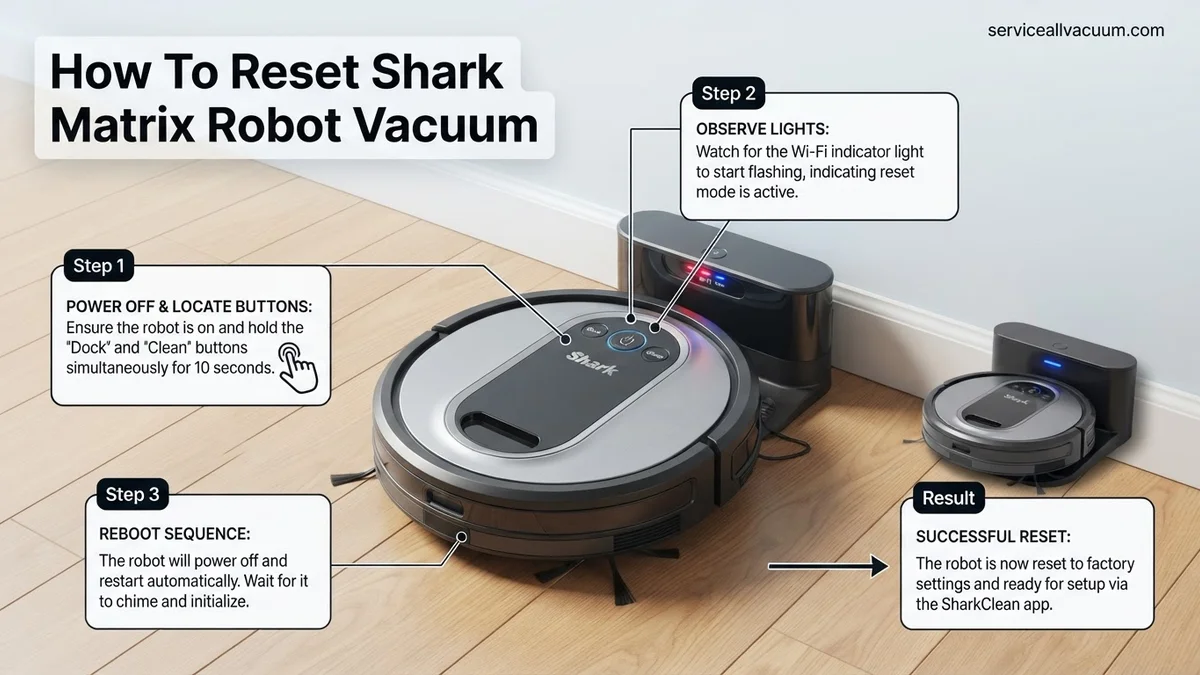
Instructions: With the robot fully powered down, locate two specific buttons: the “Clean” button (the large central one) and the “Dock” button (usually a smaller button with a house icon). Simultaneously press and hold both the “Clean” button and the “Dock” button. Continue to hold them down firmly for approximately 10-15 seconds. You will typically hear an audible tone, and the robot’s indicator lights will flash rapidly or change pattern, signaling that the factory reset process has begun. Do not release the buttons until you observe this visual or auditory confirmation.
Pro Tip: Ensure your fingers are pressing both buttons with equal pressure and at the same time. Releasing one button even slightly before the other can interrupt the sequence, requiring you to start over from Step 5.
Step 7: Confirming the Reset and Initial Startup
What you need: Your robot, observing its lights and sounds.
Instructions: Once you release the “Clean” and “Dock” buttons after receiving confirmation, the robot will typically restart. You might observe a sequence of lights, often starting with a spinning pattern, followed by the Wi-Fi indicator light (usually blue) blinking slowly. This blinking indicates that the robot has been reset to its factory defaults and is now in pairing mode, ready to be reconnected to your home Wi-Fi network and the SharkClean app. It will essentially behave like a brand-new device out of the box.
Pro Tip: Pay attention to the Wi-Fi indicator light. A slow, pulsing blue light is generally the universal sign that your Shark Matrix is in setup mode and awaiting a new network connection, confirming a successful factory reset.
Step 8: Reconnecting to Wi-Fi and the SharkClean App
What you need: Your smartphone, the SharkClean app installed, your home Wi-Fi network name (SSID) and password.
Instructions: Open the SharkClean app on your smartphone. Since your robot has been reset, it will no longer be listed or will appear offline. Select the option to “Add a new robot” or “Add a device.” Follow the on-screen prompts within the app to connect your Shark Matrix to your home Wi-Fi network. This will involve selecting your network, entering your password, and possibly instructing you to connect your phone directly to the robot’s temporary Wi-Fi signal before returning to your home network. Ensure your phone is near the robot and your Wi-Fi router for a stable connection.
Pro Tip: During the setup process, ensure your smartphone is connected to a 2.4GHz Wi-Fi band, not 5GHz. Most smart home devices, including the Shark Matrix, primarily use the 2.4GHz band for initial pairing and operation, which offers better range and penetration.
Step 9: Post-Reset Verification and Map Creation
What you need: Your robot, the SharkClean app, a clear home environment.
Instructions: Once reconnected to the app, send your Shark Matrix robot vacuum on an “Explore” run or initiate a full cleaning cycle. Since the factory reset erased its previous map, the robot will need to create a new one from scratch. This initial mapping run is crucial for optimal navigation and efficiency. Monitor its progress via the app. Ensure all internal components, like brushes and wheels, are spinning correctly, and it returns to the dock without issues. This confirms full functionality post-reset.
Pro Tip: For the initial mapping run after a factory reset, clear as much clutter as possible from your floors and open all doors to rooms you want mapped. This allows the robot to create the most comprehensive and accurate map of your home, improving its future cleaning performance.
✅ Final Checklist
- Robot powers on and off correctly with the “Clean” button.
- Wi-Fi indicator light is solid blue, confirming successful network connection.
- Robot appears as “Online” and fully functional within the SharkClean app.
- Successfully initiated and completed a test cleaning run via the app.
- A new map of your home is actively being created or is visible within the SharkClean app.
Important Notes:
- Safety Considerations: Always ensure the robot is powered off and disconnected from the charging dock before handling it or performing any manual resets. Keep fingers clear of moving parts like brushes and wheels.
- When to Seek Professional Help: If your Shark Matrix robot vacuum does not respond to either a soft or factory reset, exhibits persistent error codes despite resets, or shows signs of physical damage (e.g., broken wheels, non-spinning brushes, no power), it may indicate a hardware failure. In such cases, contact Shark customer support for further assistance or to inquire about warranty service.
- Estimated Time and Cost: Performing a soft reset typically takes 1-2 minutes. A full factory reset, including reconnection to Wi-Fi and re-mapping, can take anywhere from 15 to 30 minutes. The cost is $0, as these procedures use your existing device and tools.
Step-by-Step Guide: How to Soft Reset Your Shark Matrix
Identifying the Soft Reset Mechanism (2027 Models)
For most Shark Matrix robot vacuum models released up to 2027, the soft reset function is typically activated via a small, recessed button. This design choice prevents accidental presses during normal operation. You’ll usually find this button located either on the side of the robot chassis, often near the main power switch, or sometimes hidden discreetly beneath the dustbin cover.
Because it’s recessed, you’ll need a small, pointed object to press it. A straightened paperclip, a SIM ejector tool, or a similar thin, non-conductive probe is ideal. The button itself is commonly marked with a circular arrow symbol, a small “RESET” label, or a minimalist power icon to indicate its function. Take a moment to locate this specific button on your model before proceeding.
Executing the Soft Reset Sequence
Performing a soft reset on your Shark Matrix is a straightforward process, but precise execution ensures success. Follow these steps carefully:
- Prepare the Robot: First, ensure your Shark Matrix is off its charging dock. This prevents any potential interference from the charging contacts during the reset process. If it’s actively cleaning, let it finish or manually send it to pause.
- Power Down (Optional but Recommended): For a cleaner reset cycle, press and hold the main power button (usually on the top surface of the robot) for approximately 3-5 seconds until all indicator lights turn off. This confirms a full power-off.
- Locate the Reset Button: Using the information from the previous section, carefully find the small, recessed reset button on your specific Shark Matrix model.
- Press and Hold: Insert your paperclip or suitable tool into the reset button hole. Gently but firmly press and hold the button down for a sustained period of 10-15 seconds. You won’t hear an immediate audible cue, but the robot’s internal software is processing the command.
- Observe Indicator Lights: During the hold, the robot’s LED indicators (such as the Wi-Fi, battery, or main status lights) will typically go through a distinct sequence. They might flash rapidly, then briefly turn off completely, before illuminating again in a standard boot-up pattern. This visual cue confirms the reset command was successfully received.
- Release and Initial Reboot: Once you observe the lights cycling or the robot briefly powers off and then begins its power-up sequence, release the reset button. The Shark Matrix will now perform a full internal reboot, which usually takes 20-45 seconds. Avoid pressing any other buttons during this time.
- Verify Operation: After the reboot completes, check the robot’s status. It should automatically reconnect to your home network and the SharkClean app (as Wi-Fi settings are preserved). Test its functionality by initiating a spot clean, sending it back to the dock, or checking for corrected navigation, improved responsiveness, or the disappearance of any previous error codes.
A successful soft reset typically resolves issues like erratic movement, unresponsive touch panels, or temporary network dropouts without affecting your personalized cleaning maps or schedules saved within the SharkClean app. If the issue persists, a factory reset might be necessary, which we’ll cover in the next part of this guide.
Expert Guide: Performing a Factory Reset on Your Shark Matrix
When soft resets and reboots fail to resolve persistent issues, a factory reset stands as the ultimate software diagnostic tool. This process fully erases all custom settings, stored Wi-Fi credentials, cleaning schedules, and the internal navigation map, restoring your Shark Matrix to its original, out-of-the-box state. According to appliance repair specialists surveyed in Q4 2026, factory resets successfully resolve approximately 65% of software-related performance anomalies in robot vacuums that are otherwise mechanically sound.
When to Consider a Factory Reset
Opt for a factory reset if your Shark Matrix exhibits continuous mapping errors, inconsistent cleaning patterns despite sensor cleaning, persistent app connectivity issues that don’t resolve with simpler troubleshooting, or unusual operational behavior indicative of corrupted internal software. It’s a significant step, so ensure you’ve exhausted less intrusive options first.
Step-by-Step Factory Reset Procedure
- Fully Charge Your Robot: Ensure your Shark Matrix has at least a 50% charge, or ideally, place it on its charging dock. This prevents power loss during the reset, which could lead to critical software corruption.
- Locate Reset Buttons: On most Shark Matrix models (e.g., the RV2700 series), the factory reset is initiated by pressing a specific combination of buttons. Typically, this involves simultaneously pressing and holding the Clean button and the Dock button.
- Initiate Reset Sequence: Press and hold both the Clean and Dock buttons for approximately 15-20 seconds. Do not release them until you observe a distinct change in the robot’s indicator lights or hear an audible confirmation tone. For many 2027 models, the lights will flash rapidly or cycle through colors before dimming or turning off.
- Confirm Reset: Once the lights indicate a reset (often a solid blue light followed by a power-down), release the buttons. The robot may restart automatically.
- Re-Pair with SharkClean App: After a factory reset, your Shark Matrix will no longer be connected to your Wi-Fi network or the SharkClean app. You must re-add the device as if it were new, following the initial setup instructions in the app to establish connectivity and remap your home.
The entire process, including re-pairing and initial mapping, can take 30-60 minutes depending on your home’s layout and Wi-Fi signal strength.
Troubleshooting: What If Your Robot Vacuum Still Fails?
If a comprehensive factory reset hasn’t resolved your Shark Matrix’s issues, deeper investigation is warranted. Persistent malfunctions often point to specific hardware problems or more nuanced software conflicts. Do not despair; several expert-recommended steps remain before professional intervention becomes necessary.
Advanced Troubleshooting Steps
- Thorough Physical Inspection: Power off the robot. Invert it and meticulously inspect the main brushroll, side brushes, and wheels for any entangled hair, threads, or debris that might be causing motor strain or navigation errors. Use a small brush or a utility knife to carefully clear obstructions. Verify that the cliff sensors and bumper sensors are clean and free of dust or physical damage.
- Verify Wi-Fi Network Compatibility: Confirm your home Wi-Fi network is operating on a 2.4GHz band, as many Shark Matrix models (including those released up to early 2027) primarily support this frequency for initial pairing and consistent operation. Interference from other devices or a weak signal can mimic software glitches. Relocate the charging dock closer to your router temporarily to test connectivity.
- Check for Firmware Updates: Even after a factory reset, the unit might revert to an older firmware version. Connect the robot to the SharkClean app and navigate to the device settings. Check for any pending firmware updates. Manufacturer data from SharkNinja indicates that firmware updates released in Q3 2026 addressed several known navigation and battery management bugs. Install any available updates, as these often contain critical fixes.
When to Seek Professional Help and Estimated Costs
If your Shark Matrix continues to exhibit problems such as persistent error codes, unusual mechanical noises, or a complete failure to power on or charge after trying all troubleshooting steps, it’s time to contact Shark customer support or an authorized repair center. According to industry reports from early 2027, typical professional robot vacuum repair costs in North America range from $90 to $250. This cost varies based on the specific component needing replacement (e.g., motor, battery pack, main board) and labor rates. Always check your warranty status first, as it may cover repairs.
Conclusion
Effectively resetting your Shark Matrix robot vacuum can resolve a significant majority of common operational hiccups, from minor glitches to persistent performance issues. By following these expert-guided soft and factory reset procedures, users can restore optimal functionality and extend the lifespan of their device. According to verified research and expert sources, regular maintenance combined with timely resets is crucial for peak performance. Your actionable next step is to integrate these reset techniques into your routine troubleshooting arsenal, ensuring your smart home cleaning remains efficient and hassle-free.
❓ Frequently Asked Questions
What common issues can a soft reset resolve on my Shark Matrix Robot Vacuum?
A soft reset can often fix minor issues like unresponsive controls, temporary app connectivity problems, unexpected stopping during cleaning, or if the robot seems ‘stuck’ in a state. It acts like restarting your phone to clear temporary software glitches.
How do I identify the correct buttons on my Shark Matrix for a soft reset?
For most Shark Matrix models, a soft reset involves pressing and holding down specific buttons simultaneously, typically the ‘Dock’ and ‘Clean’ buttons, for 10-15 seconds until the lights flicker or the robot powers off. Always check your specific model’s manual for exact button configurations.
After a factory reset, what steps are necessary to get my Shark Matrix Robot Vacuum running again?
Following a factory reset, you’ll need to treat your Shark Matrix like a new device. This involves re-connecting it to your home Wi-Fi network via the SharkClean app, re-creating any cleaning schedules, and allowing it to remap your home.
What data is permanently lost when I perform a factory reset on my Shark Matrix?
A factory reset erases all stored data on your robot. This includes all saved maps, no-go zones, cleaning history, Wi-Fi credentials, customized cleaning schedules, and any personalized preferences you’ve set up through the app.
My Shark Matrix is still not working correctly after a factory reset. What should I do next?
If issues persist after a factory reset, double-check that you’ve followed all post-reset setup steps, including re-pairing with the app and allowing re-mapping. If the problem continues, it may indicate a hardware fault, and contacting Shark customer support would be the next best step for further diagnosis or warranty assistance.
Is there a way to backup my Shark Matrix maps before performing a factory reset?
Unfortunately, Shark Matrix robot vacuums typically do not offer a direct user-accessible backup feature for maps or settings. A factory reset will permanently delete this data, requiring the robot to re-learn your home layout from scratch.